Quick Start Guide
Download, install, and run your first query.
Step 1: Download TablePro
Via Homebrew (fastest):
brew install --cask tablepro
- Apple Silicon (M1+):
TablePro-arm64.dmg
- Intel:
TablePro-x86_64.dmg
Step 2: Install TablePro
- Open the DMG file
- Drag TablePro to Applications
- Eject the DMG
- Launch TablePro
Step 3: Create Your First Connection
The welcome window has a sidebar of saved connections on the left and a detail panel on the right. Search is in the window toolbar; press Cmd+F to focus it. The toolbar + button starts a new connection, and the folder button creates a connection group.
First launch ships a bundled Chinook sample database. Open it with one click to try TablePro without setting up a server. Reset the sample from File > Reset Sample Database any time.
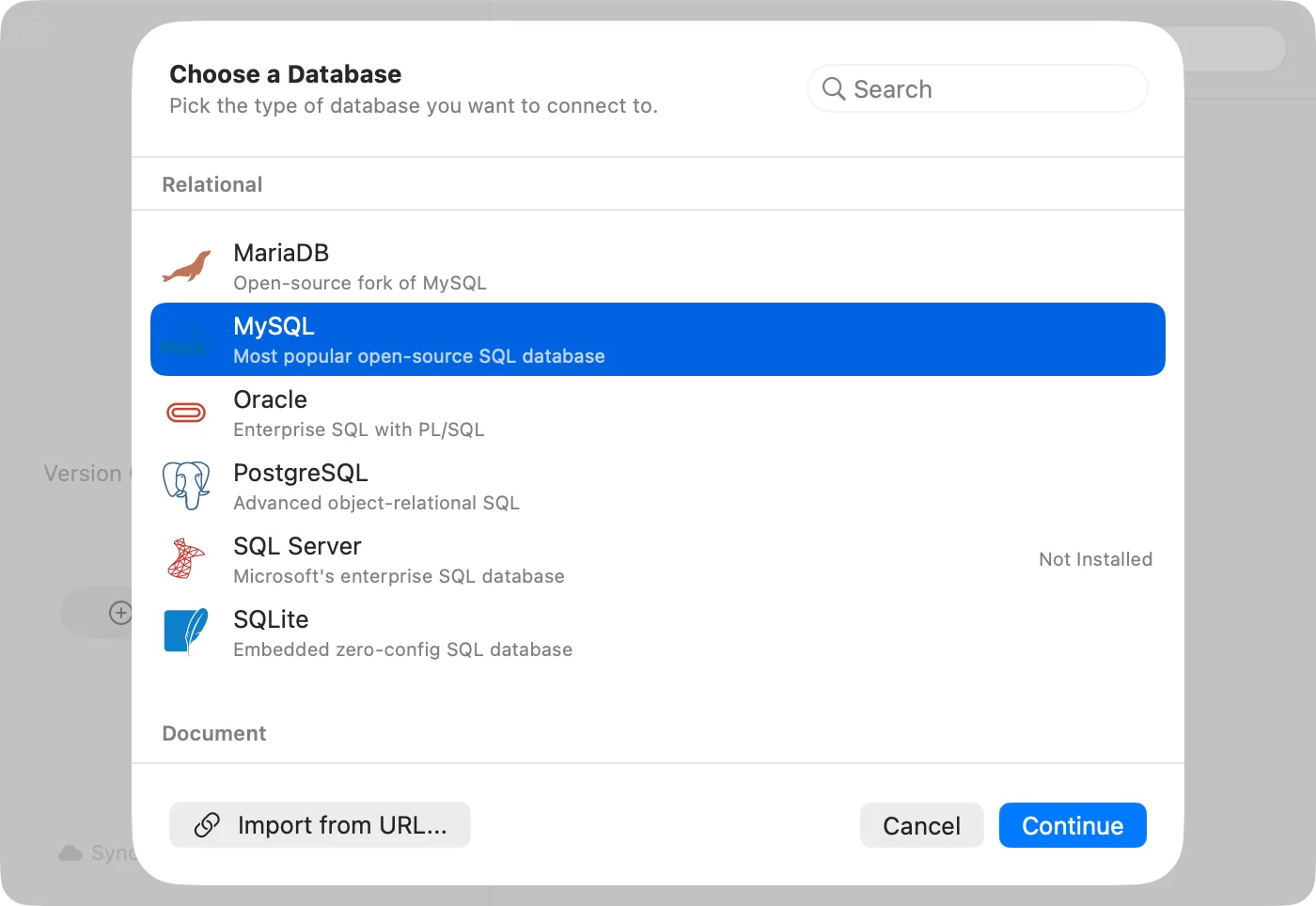
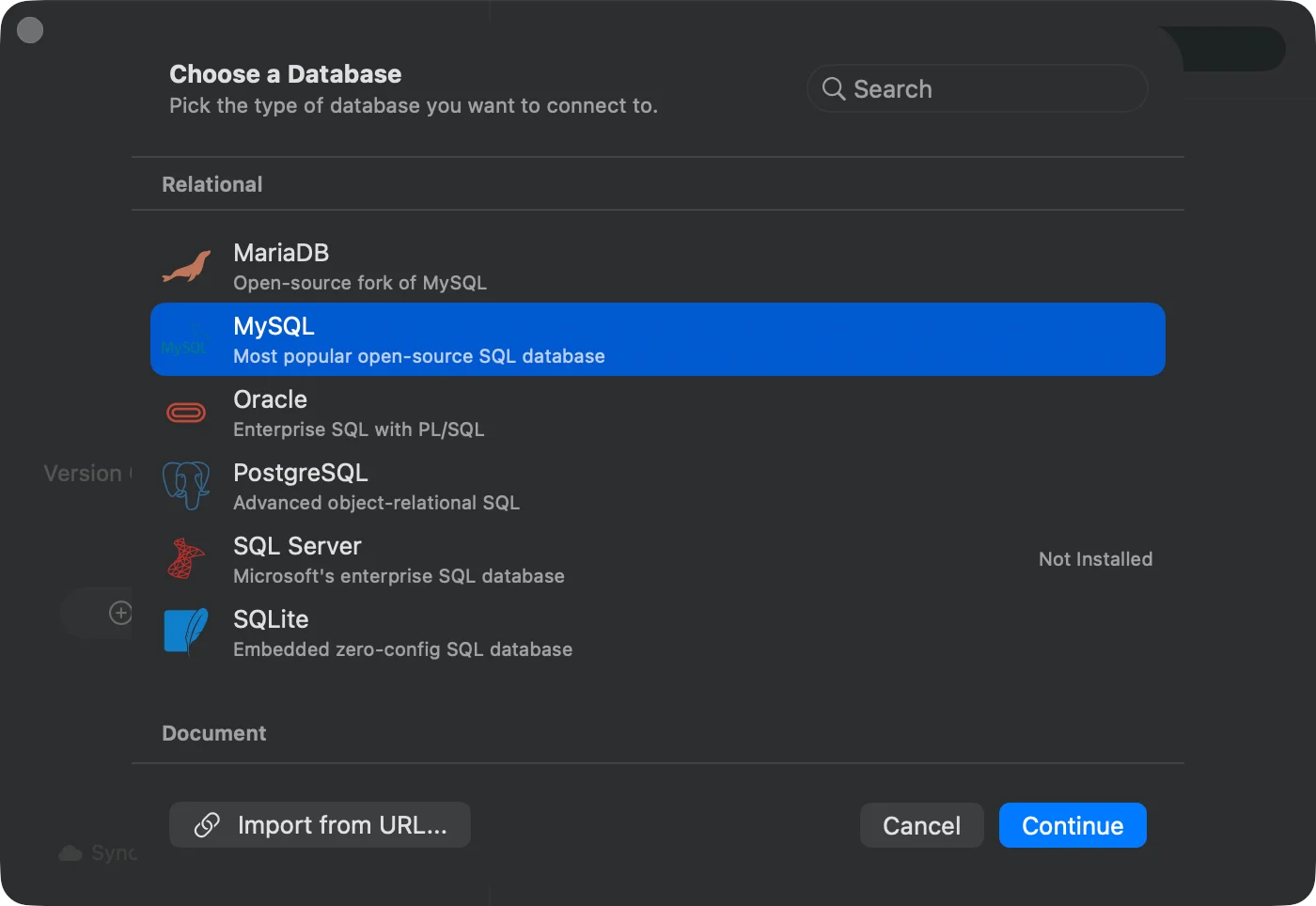
To make a real connection, click Create connection in the empty state (or the toolbar +). A chooser sheet appears with every supported database type grouped by category. Pick one and click Continue.
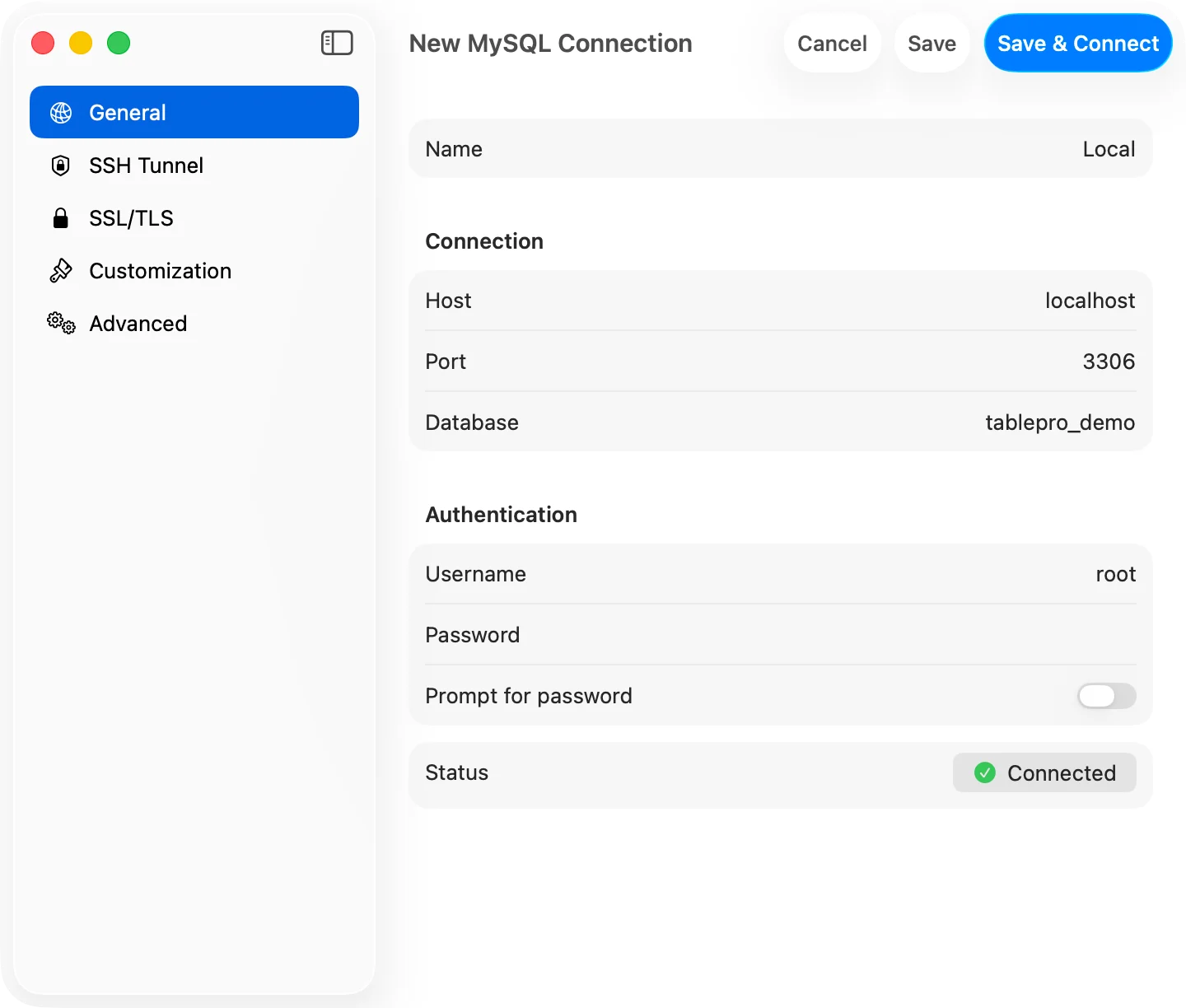
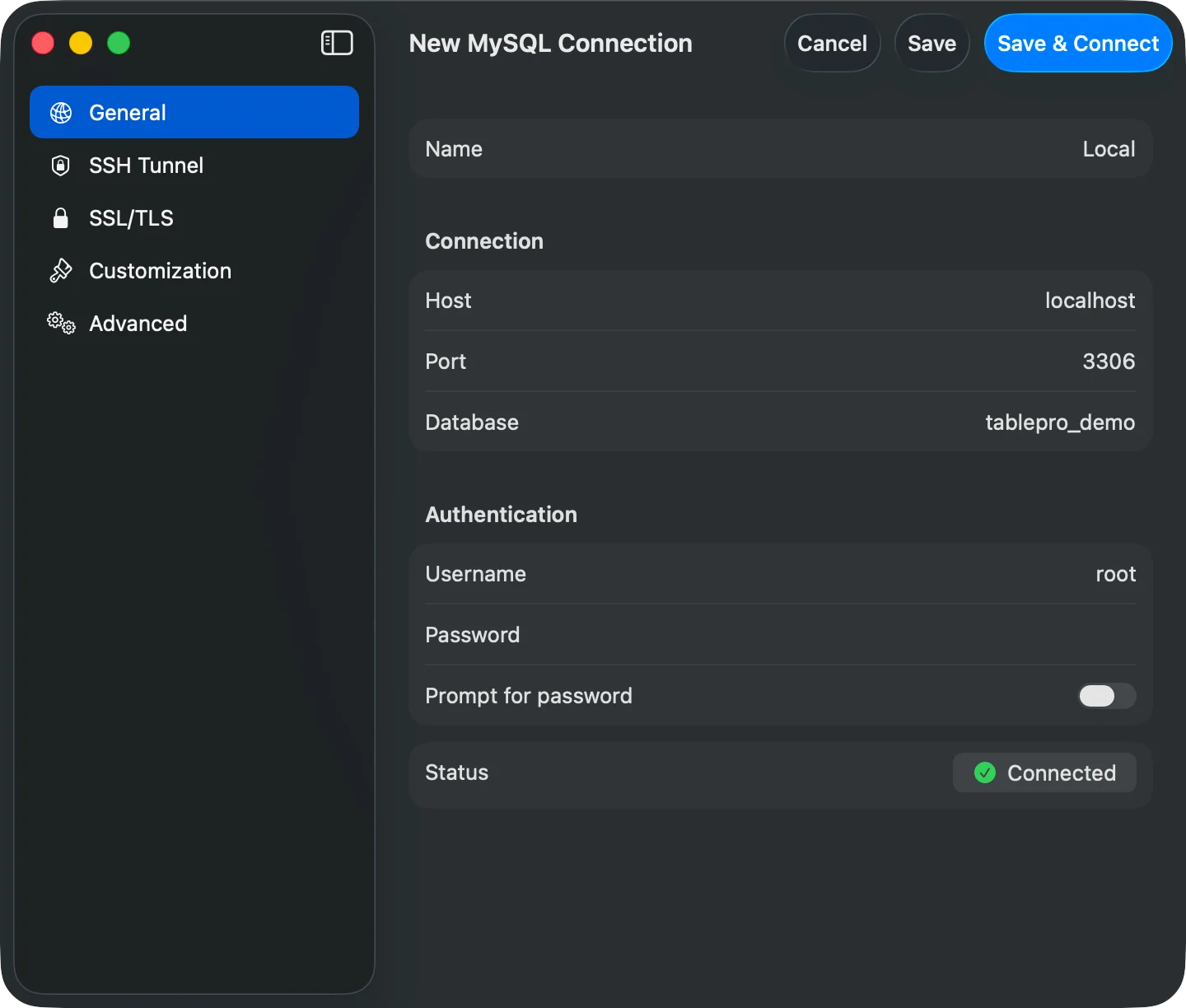
The connection form opens, pre-filled with sensible defaults. Common examples:
MySQL: host localhost, port 3306, username root
PostgreSQL: host localhost, port 5432, username postgres
SQLite: browse to a .sqlite or .db file, no auth needed
MongoDB: host localhost, port 27017, optional username/password
Already have a connection URL? Click Import from URL… in the chooser footer. TablePro detects the database type and pre-fills the form for you.
Step 4: Test and Save
The General pane has a Status row at the bottom with a Test Connection button. Click it to verify your settings. Once it shows a green checkmark, click Save & Connect in the toolbar.
Step 5: Explore Your Database
The main interface has three panels:
- Sidebar: Your databases and tables
- SQL Editor: Write and execute SQL queries
- Data Grid: View and edit query results
Try Your First Query
- Click on a table in the sidebar to view its contents
- Or type a query in the SQL editor:
SELECT * FROM users LIMIT 10;
- Press
Cmd+Enter to execute the query
- View the results in the data grid below
What’s Next
Explore connections, SSH tunneling, keyboard shortcuts, or AI features.
Need help? Check Installation or open an issue on GitHub.